First steps
Installation
CardAK is distributed as a portable executable, not requiring andy particular instalacion or additional configuration.
It is enought to copy the executable file in a folder included in the PATH of the user account, and optionally giving it executable permissions (in Linux environments).
Basic use
cardak [COMMAND] [OPTIONS] [FILES]
The program receives (optionally) the name of a commands, some flags (with and without parameters) and one or more file names. Depending on the command, it may be mandatory to supply at least one file name.
Flags are command modifiers, and we have generic flags that apply to all the commands, and also some flags specific to each command.
The order of these components is usually not important (except some exceptions), and the commands are not case sensitive. They can also be abbreviated by using the first letters of the command (when there is no ambiguity with other commands, like for example, VERSION can be indicated as VER or VERS)
One of the first thigs we can do is to use a command to verify the version of the program. That command is VERSION

Next, we can see the available commands along with a brief description of their meaning and usage, and also the available flags. For this we can use the HELP command or the --help flag. The advantage of using the flag is that it can be appended to any command, so if we have any doubt on how to use a caommand, we can add the --help flag at the end of the line and see the help. Then, we can just repeat the line without the flag to execute it.
Let's see which commands are available by using the general HELP command:
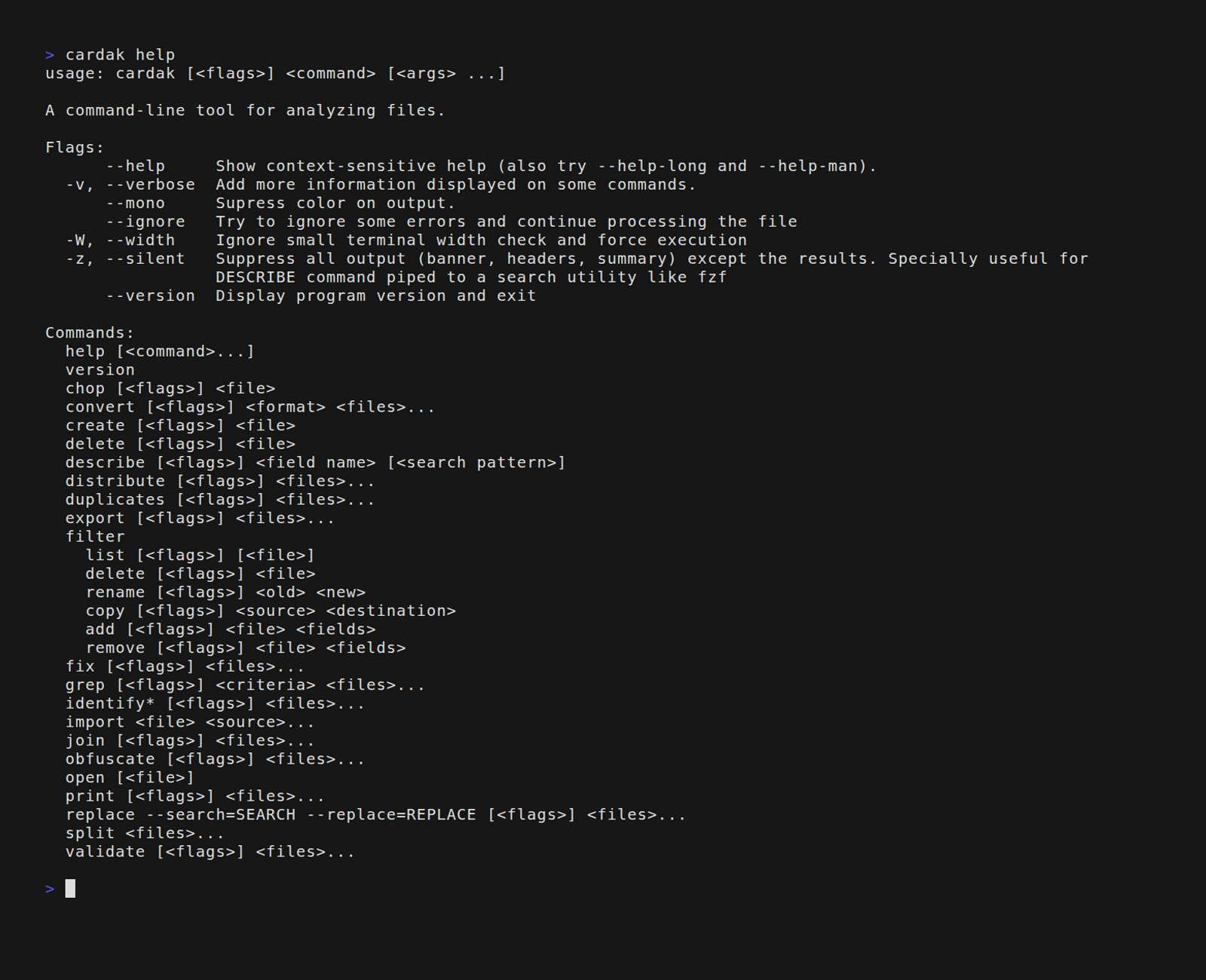
To get help for a particular command:
cardak [COMMAND] --help
o bien
cardak HELP [COMMAND]
How to use it
We have three ways to use this tool, in CLI mode, in TUI mode and in BATCH mode.
The tool tries to detect automatically the mode and it adjusts some values accordingly, which we will see in more detail in another section.
CLI mode (command line interface)
This is the preferred mode for quick actions or actions applied to big files. It is also useful when processing several files.
It is ment to be used by human operators and the output tends to have a friendly format while also using colors to make the visualization easier.
Interactive mode (TUI)
CardAK includes a TUI (Text User Interface) that allows to visually interact with the contents of the file. To access this mode we must use the OPEN command while supplying a file name. It is important to note that in this mode we must specify a file name (and only one)
Example:
cardak OPEN [FILE]
BATCH mode
This mode is very similar to the command line, but it is useful to be used in automation chains and scripts, where the output is not formatted to be attractive but instead, functional.
The output of the commands tend to be just the required data without formatting (no banner or footer is displayed), the terminal size is omited and colors are suppresed, because if when redirecting the output containing color codes to a file, that output can contain extra garbage characters.
Also the return code of the program is returned as 0 if everything succeeds, and a value greater than 0 if errors were encountered. Examples and notes about these values are detailed for each command if applicable.