Data search
In Linux (and generally in Unix), we have the grep command to perform different searches in files. This works perfectly well when the files being searched are in plain text, which is not the case for IPM files.
As an example, let's suppose we know that in any of these files there are purchases for a merchant called "Carpinteria", but we are not sure which file contains those transactions.
First, let's try the grep command from the system:

As we can see, we don't get any results and grep returns the value of 1 indicating that it could not perform a search in "binary" files. We can, of course, open the file with an hexadecimal editor and perform the search.
Let's try with the hexdump command:
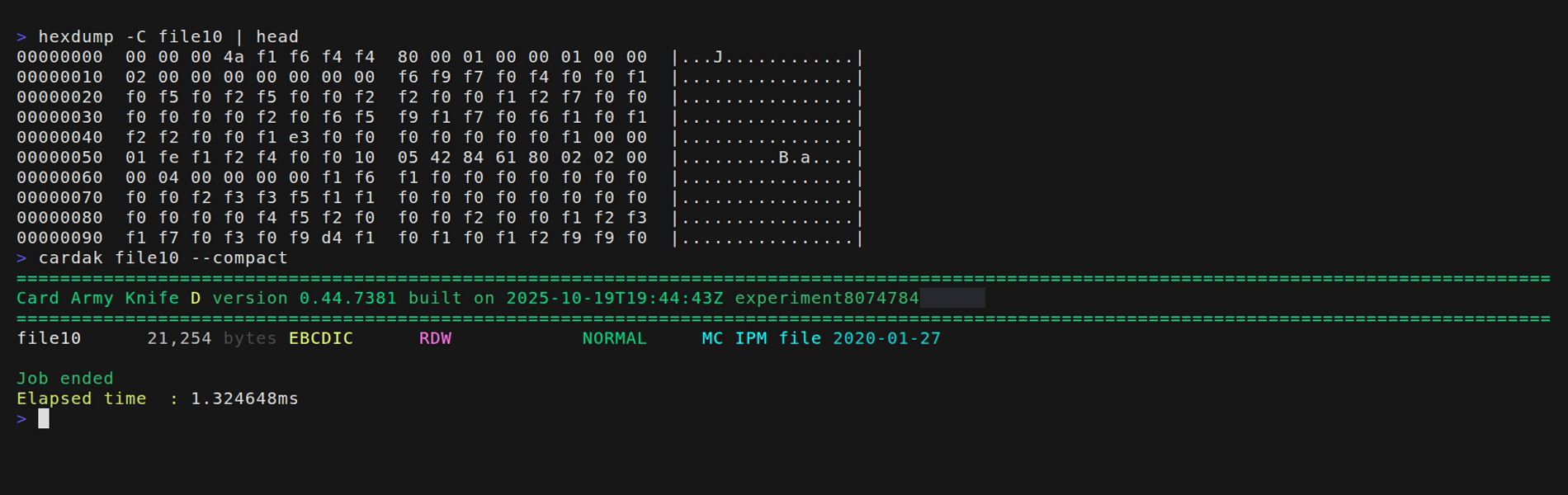
It doesn't seem to contain human readable text, but what is really the problem? We notice that the encoding is EBCDIC, so even if we can see the byte values, they don't contain readable ASCII text. Of course we could first convert it into ASCII and then use hexdump, but when using multiple files this is not practical.
Let's try with a graphical tool (in Windows we also have graphical Hex editors):
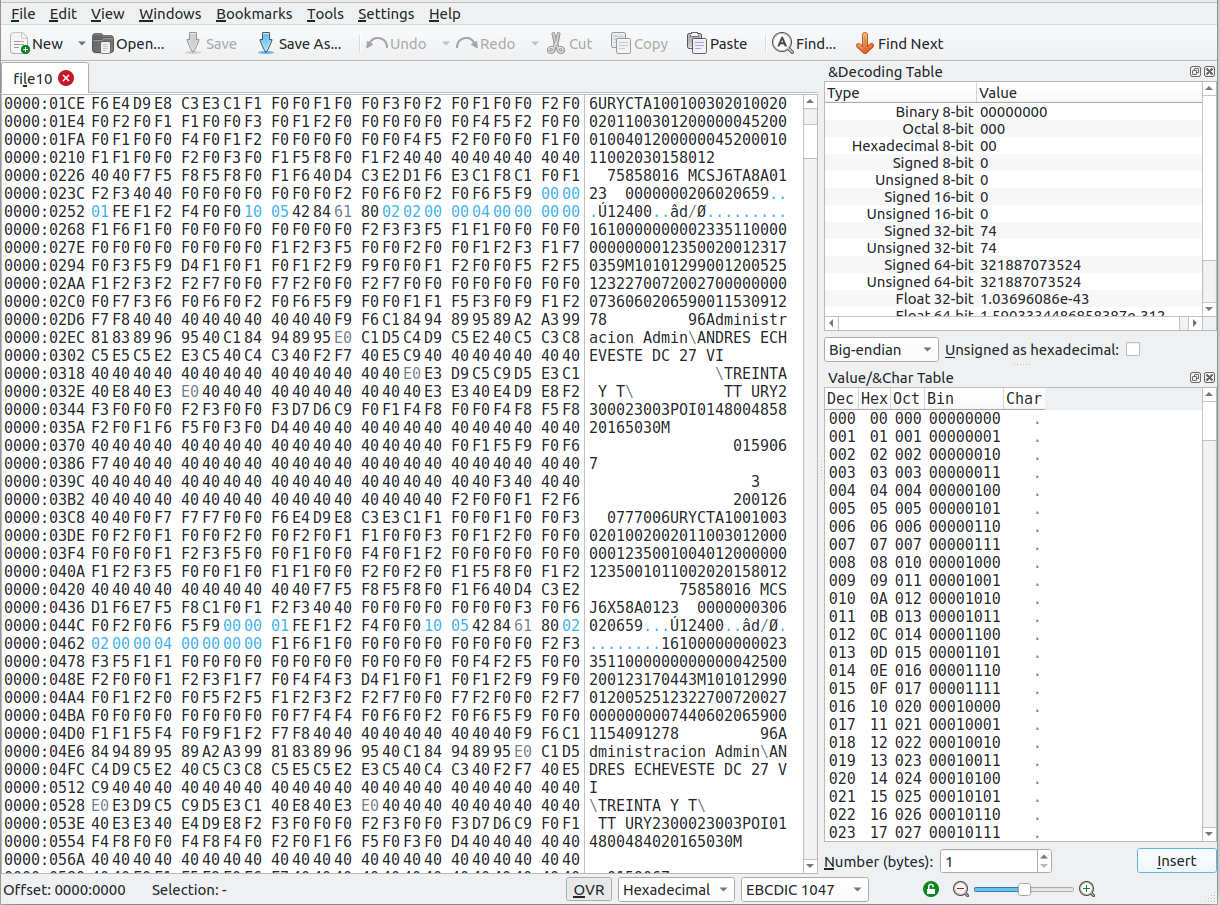
Now, changing the encoding to EBCDIC, we start to see values that we can identify. But this option requires to open the files one by one to perform the searches, and when we need to search for more specific data and not just a string, the situation doesn't become better.
So let's see how we can use the tool to perform searches across IPM files.
As we mentioned earlier, we start searching the files for records containing the word "carpinteria" in the merchant name. We know that the merchant name comes in field DE043, but we will start performing a global search (in all fields)
We use the GREP command, indicating the search criteria and then the file or files where to perform the search.
Regarding the search criteria this is very flexible and we can perform global searches (anywhere in the record), in specific fields (including subfields) or using logical combination in the condigtions like OR and AND (to learn more about using conditions, please refer to the corresponding section for the GREP command)
Right now, let's perform the search just for the text "carpineteria". Please observe that the search is case-insensitive.
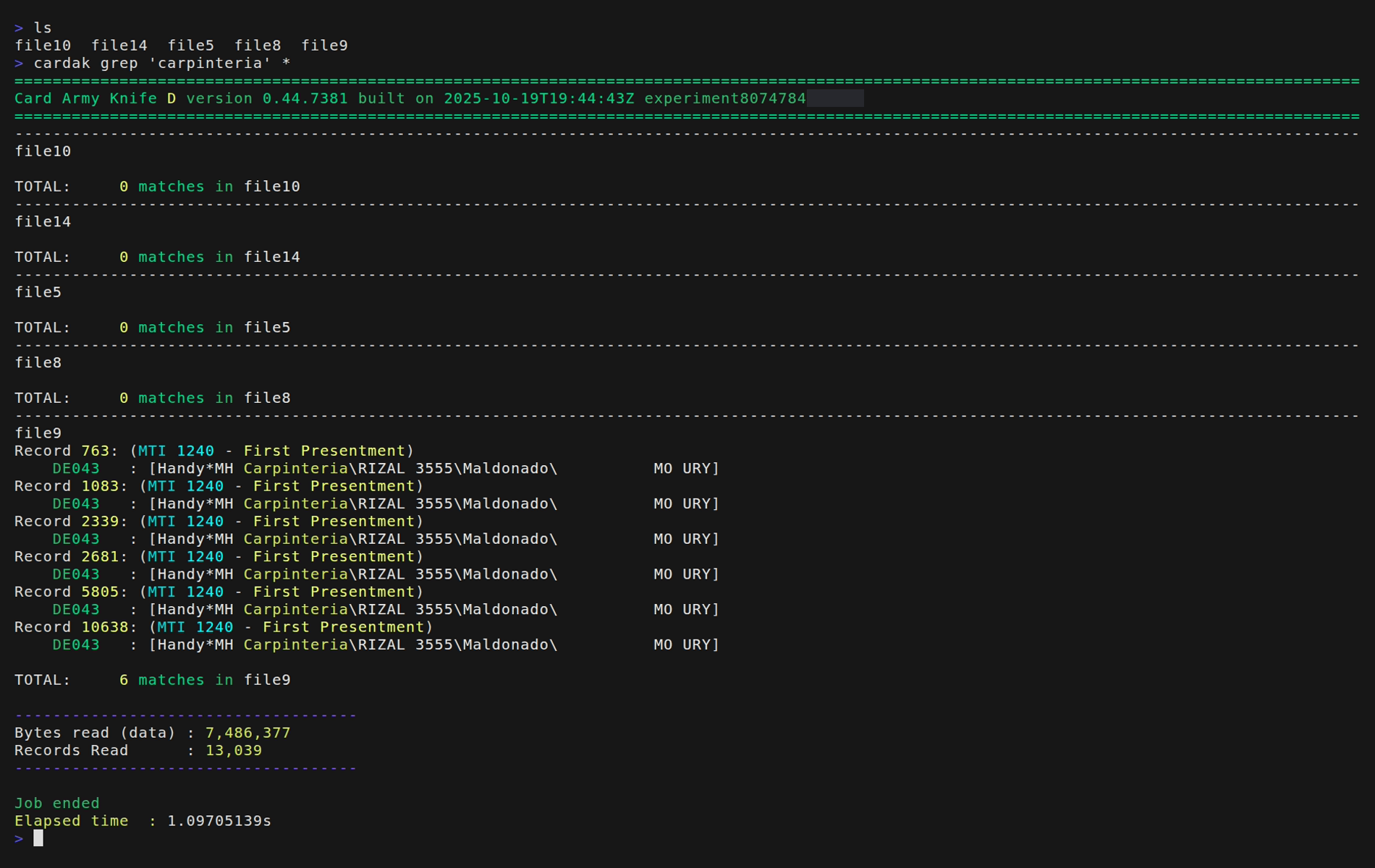
We can see that in the file file9 there are 6 records cotaining that text in field DE043. We also see the record numbers where it is present and we also see that those 6 records correspond to first presentments.
From here on we can narrow and improve our search, but now fucusing on just the file we know contains the transaction we are looking for.
For example, the next step could be to show not only the records where the text is found, but also to show the contents of fields DE004 (transaction amount) and DE012 (Date and Time). To achieve this we can add the flag -F where we can put the list of fields to be shown in the results. Take note that this list of files is independent of the fields used for the search, it is just a list of fields to be displaye on records that match the searched criteria.
To specify the desired fields, we write the field list separated by commas, and we can indicate if we are refering to a Data Element (DE), to a Private Data Subelement (PDS) or ir we want to indicate any of their subfields. For esample, the Date and Time come in field DE012, and it contains two subfields which are the Date in subfield 1 and the time in subfield 2. So, instead of indicating the full field DE012, we can indicate each of the DE012 SF 1 and DE012 SF 2 separately.
For more information on how to specify the fields and how to use predetermined lists, please refer to the section Flags and Filters.
Let's see the output of this command in the example:
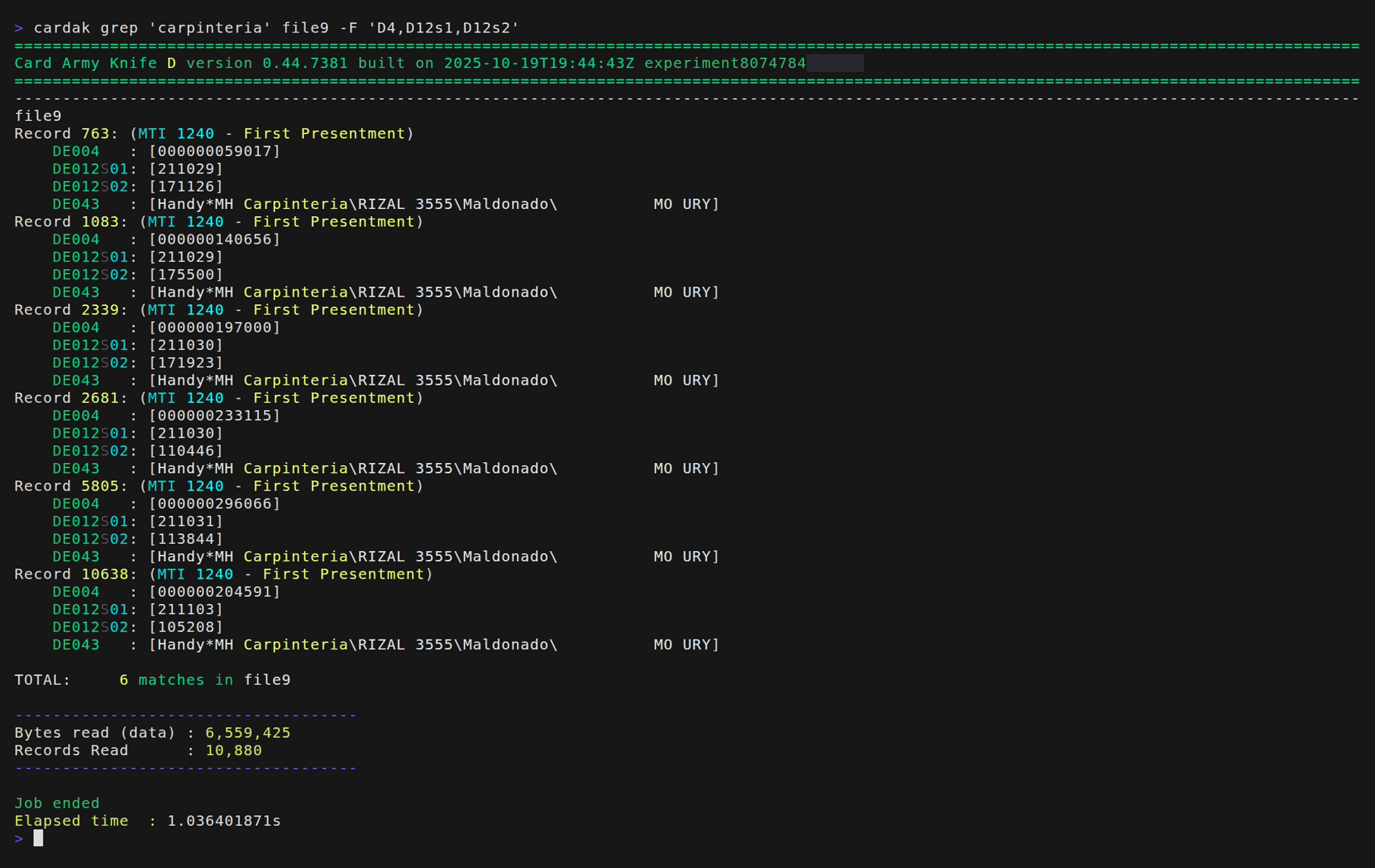
Now we can also see the amounts and times of the matching records.
Suppose that there are too many records that contain the searched value, but we know some extra value from the required transaction. In that case we can narow the results by impproving the search criteria. For example, if we know that the transaction was done in a merchant with "carpinteria" in its name, and the amount was for 1970.00, we can search for the specific record like this:
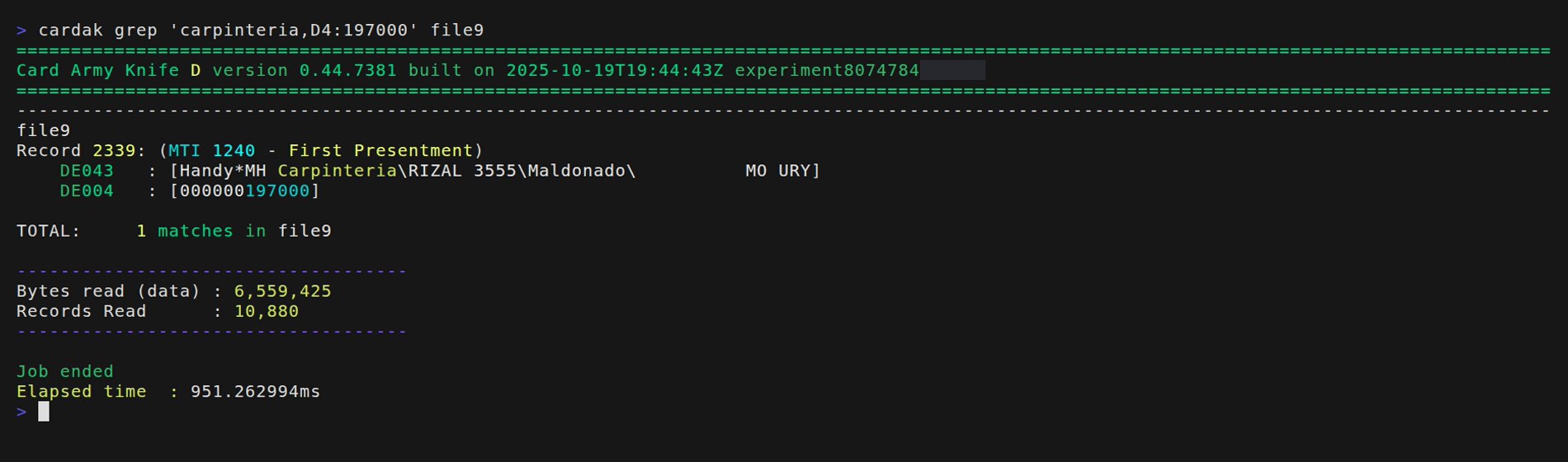
Now we just get one results, record number 2339 containig the desired transaction.
At this point we may want to see all the fields of the transaction. One way could be to specify the long list of fields to show, but we have other, more efficient ways.
We could for example use the PRINT command. This command shows in a friendly way the contents of a file or selected records.
We can redirect this output to a text file so we can visualize that output in a text editor.
Let's see the contents of the matching record from the GREP command used before. We saw that the record was the record number 2339, so we can just specify that record number.
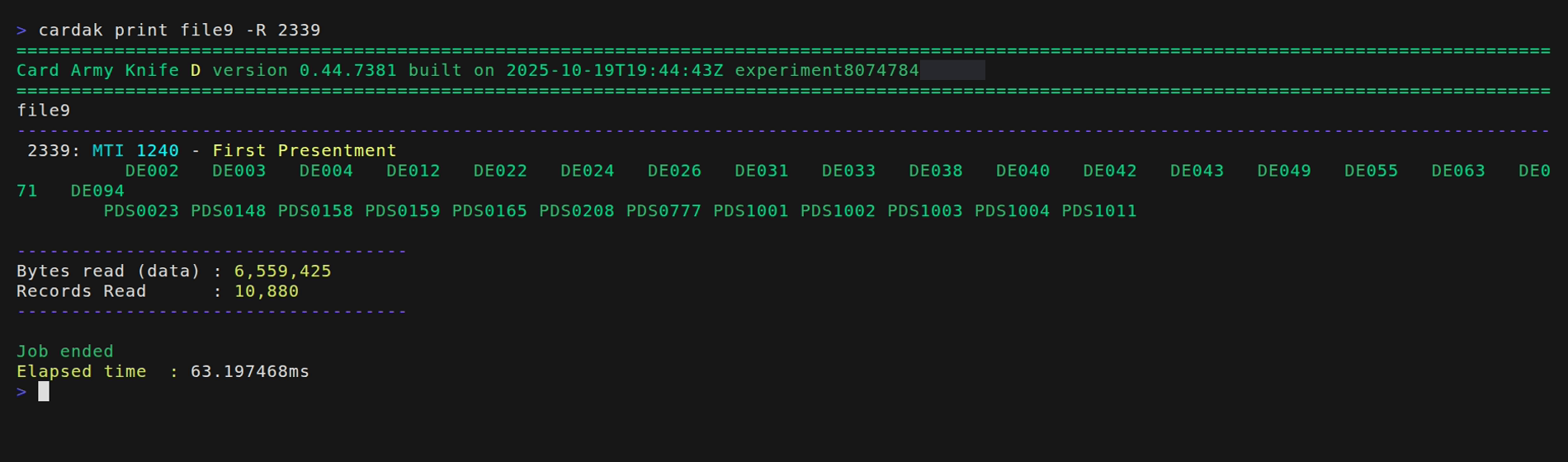
By default, the PRINT command shows, for each record, the list of present fieds in that record (first the DE and then the present PDS).
If we also want to see the values of each field, we can add the flag --detailed (-d)
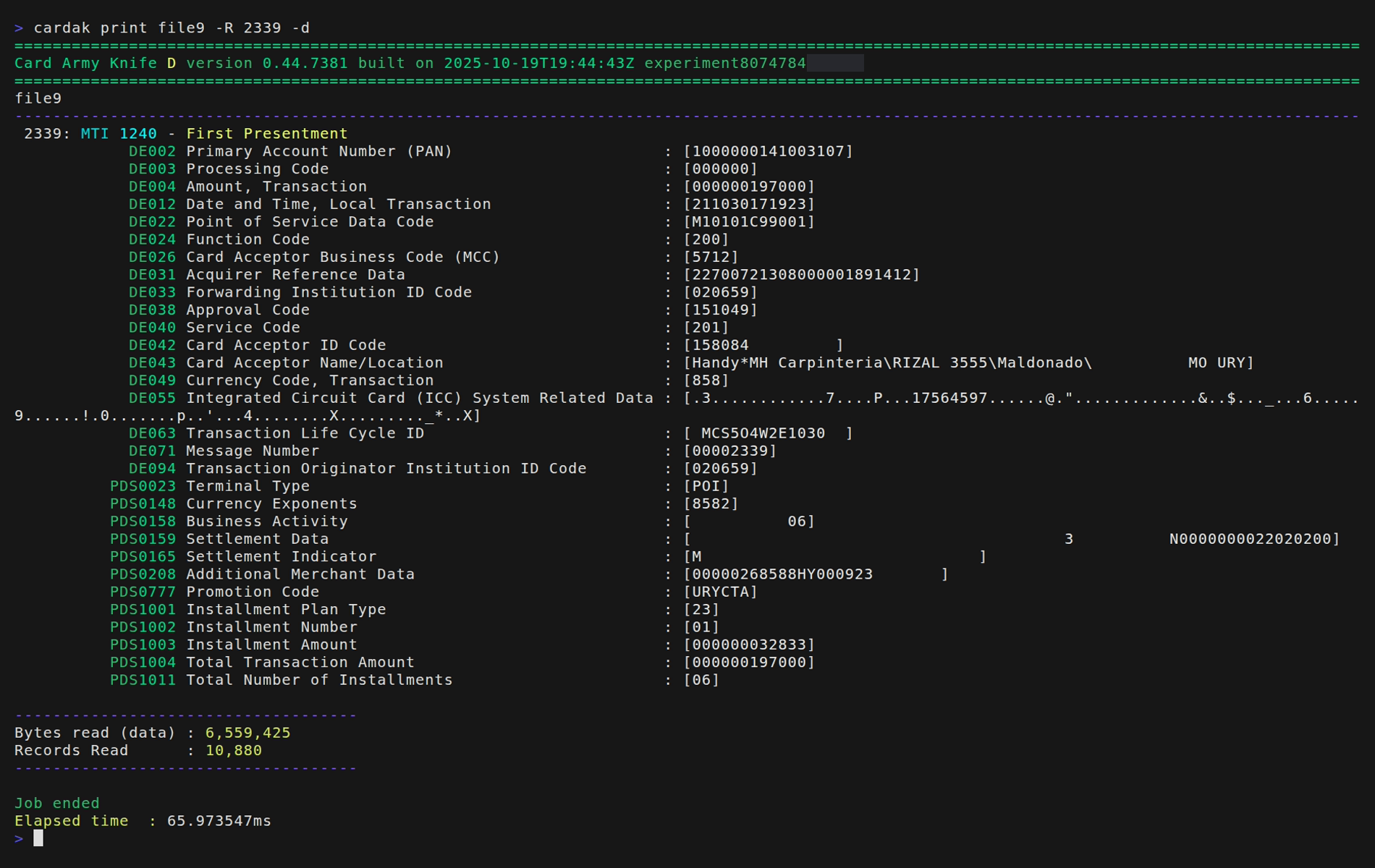
This way we can see the list of present fields in the record, their description and the correspoding value.
We can also add the flag --subfields (-s) to see the contents of the subfields for fields which contain subfields.
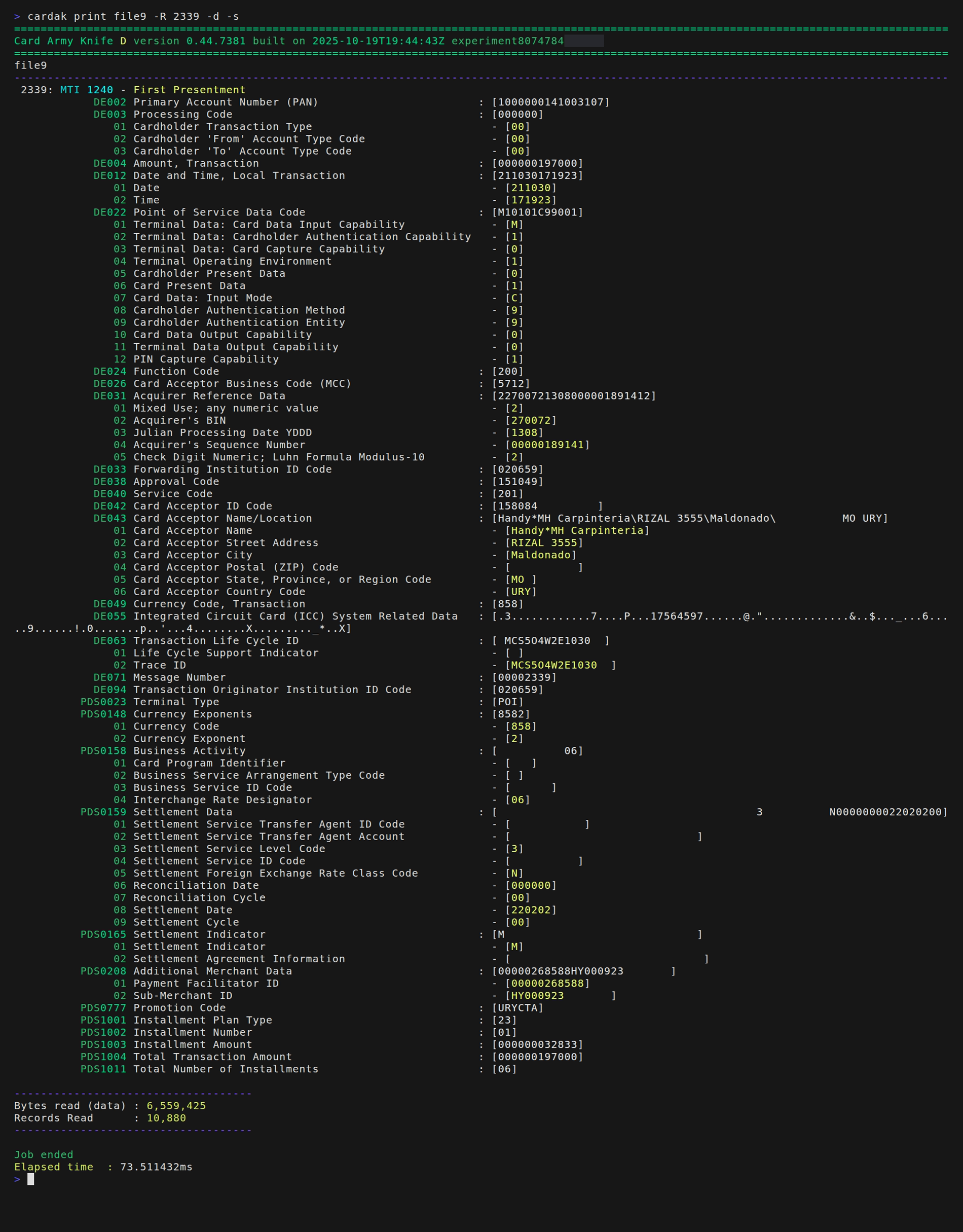
In case of redirecting this output to a text file to be opened in a text editor, it is convenient to add the flags --silent (-s) or --mono to prevent the output to supress colors, banners, etc.
In recent versions of the tool, there is usually no need to use the --silent or --mono flags, as it automatically detects if it is running in a non-interactive session or if its output is being redirected, applying the effects of these two filters automatically.