EXPORT
Exports selected records from MasterCard Interchange files to files in either CSV or HEX formats.
Syntax
$ cardak help export
usage: cardak export [<flags>] <files>...

Exports the contents of the file as CSV (comma separated values) or HEX records

It can write the values to a file or display them on the console

Flags:
      --help                 Show context-sensitive help (also try --help-long and --help-man).
  -v, --verbose              Add more information displayed on some commands.
      --mono                 Supress color on output.
      --ignore               Try to ignore some errors and continue processing the file
  -W, --width                Ignore small terminal width check and force execution
  -z, --silent               Suppress all output (banner, headers, summary) except the results. Specially useful for DESCRIBE command piped to a search
                             utility like fzf
  -T, --file-type=FILE-TYPE  Filter by file type when supplying several files. File types are represented by a single letter as: I-IPM files, M-MPE files
  -R, --records=RECORDS      List of record numbers to be exported. Values are separated by comma (,) and ranges are indicated by the starting and ending
                             record separated by a hyphen (-)
  -F, --fields=FIELDS        List of IPM fields to be exported (can use a filter name)
      --console              Do now wirite the file and display output on console
  -C, --code=CODE            Filter by Function Code description
  -x, --hex                  Export a .ckh file with records in HEX format
  -l, --last                 Use the record numbers returned on the last GREP command

Args:
  <files>  File names to export
Descripotion
With this command we can extract full or partial records from IPM files and store them in files with CSV or HEX format, that can be used by external programs or as source data to be imported into another IPM files.
CSV format
By default, when no other option is specified, a file with CSV format is created with the same name as the original file but appending "-EXP.csv”
These files can be opened in a spreadsheet to manipulate their values using the spreadsheet tools.
Binary fields are exported using their HEX representation.
HEX format
If we use the --hex (-x) flag, the exported file will be in HEX format instead of CSV. In this case the filter by field is ignored and the full record is exported.
This format is useful if we later want to import those records into another IPM file (the IMPORT command also accepts CSV formats, but we could try to import incomplete records using that format)
Export filters
If we want to export only some records we can use the -R flag, and if we only want to export some fields, we can use the -F flag (please refer to the section Flags and Filters for more information). Note that when exporting into HEX format files, the fields filter is ingnored and the full contents of the record is exported.
We can also filter by Function Code to export all records for that category. For example, if we have a file containing a mix of record types and we just want to export the Fee Collections, we can do this:
In this example, we first analyze the contents of the file to verify how this works (only needed for this demonstration, this step is not necessary):
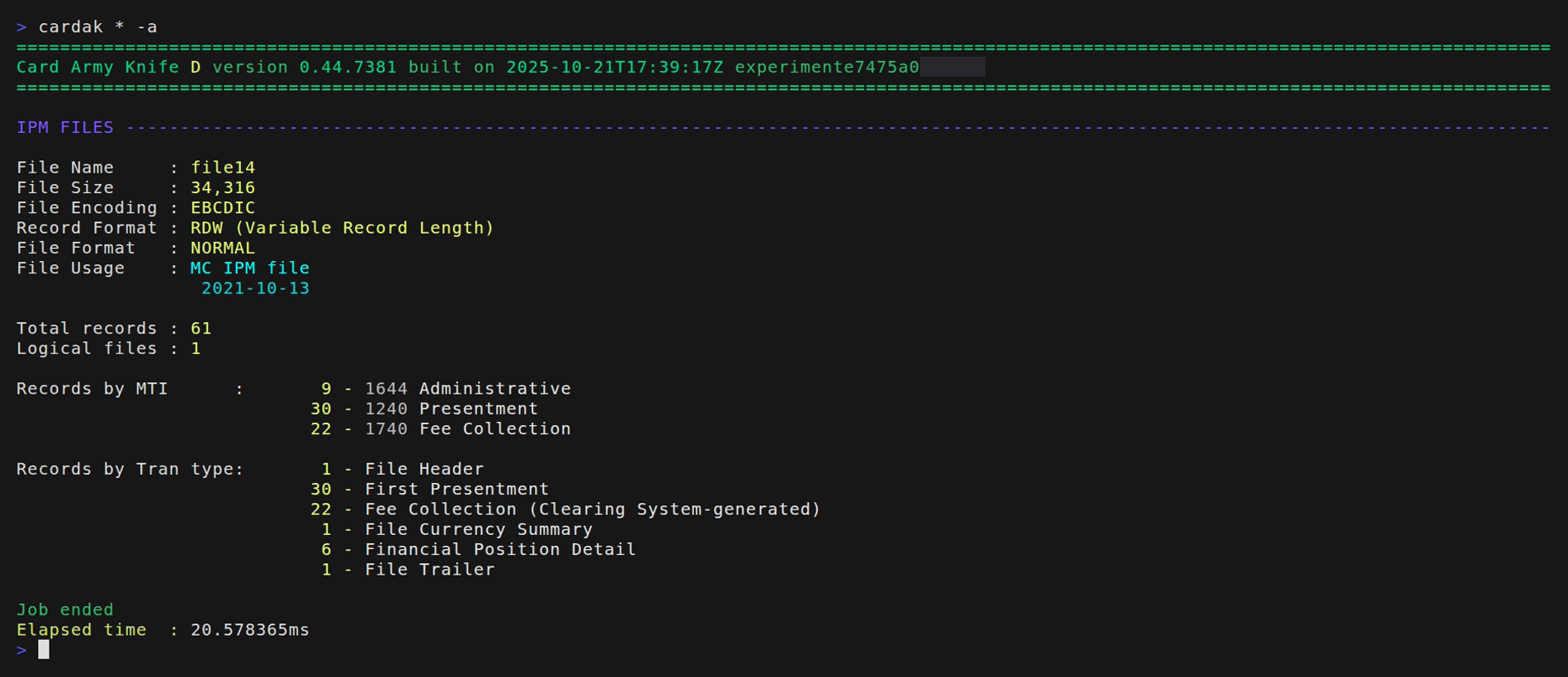
We see that this file contains 22 Fee collections, so we proceed to export all of them:

Please note that we have 22 Fee Collections but the exported file contains 23 lines. This extra line is because the CSV file contains a header with the names of the fields in the file.
We can also use the --last flag to export the records returned by the last GREP command on this file.
Other options
We have the option to display the exported records (in the selected format) on the console without generating any file. To do this we can use the --console flag.
As with other commands, we can use the --file-type (-T) flag to filter by file type when using wildcards.