FILTER
Handles filtering definitions to be used in several commands where we can filter by field.
Syntax
$ cardak help filter
usage: cardak filter <command> [<args> ...]

Manages filter files

Flags:
      --help     Show context-sensitive help (also try --help-long and --help-man).
  -v, --verbose  Add more information displayed on some commands.
      --mono     Supress color on output.
      --ignore   Try to ignore some errors and continue processing the file
  -W, --width    Ignore small terminal width check and force execution
  -z, --silent   Suppress all output (banner, headers, summary) except the results. Specially useful for DESCRIBE command piped to a search utility like fzf

Commands:
  filter
    list [<flags>] [<file>]
    delete [<flags>] <file>
    rename [<flags>] <old> <new>
    copy [<flags>] <source> <destination>
    add [<flags>] <file> <fields>
    remove [<flags>] <file> <fields>
Description
This command does not apply to files, but allows to define and manage different filters that can later be used in some commands that accept a filter by field, so we don't need to write the full list of fields every time. It is also different to other commands as this one accepts sub-commands.
To better understand the concept, let's imagine that we frequently want to refer to the fields DE2, DE3, DE4, DE12, DE24, DE25 and DE26 as they are the fields we usually use from the records.
When using the PRINT command, we can always add this:
-R D4,D12,D24,D25,D26
But this is not practical. What we can do is create a definition containing that list of fields and use it as a filter. We first need to assign a name to this filter, which is just a string of characters without spaces.
Examples
To see how to use this functionality, we will start with the LIST sub-command to see all defined filters.

As we can see, we have no filters defined. We will create a new one with name “myfilter” that contains the list of fields mentioned earlier.
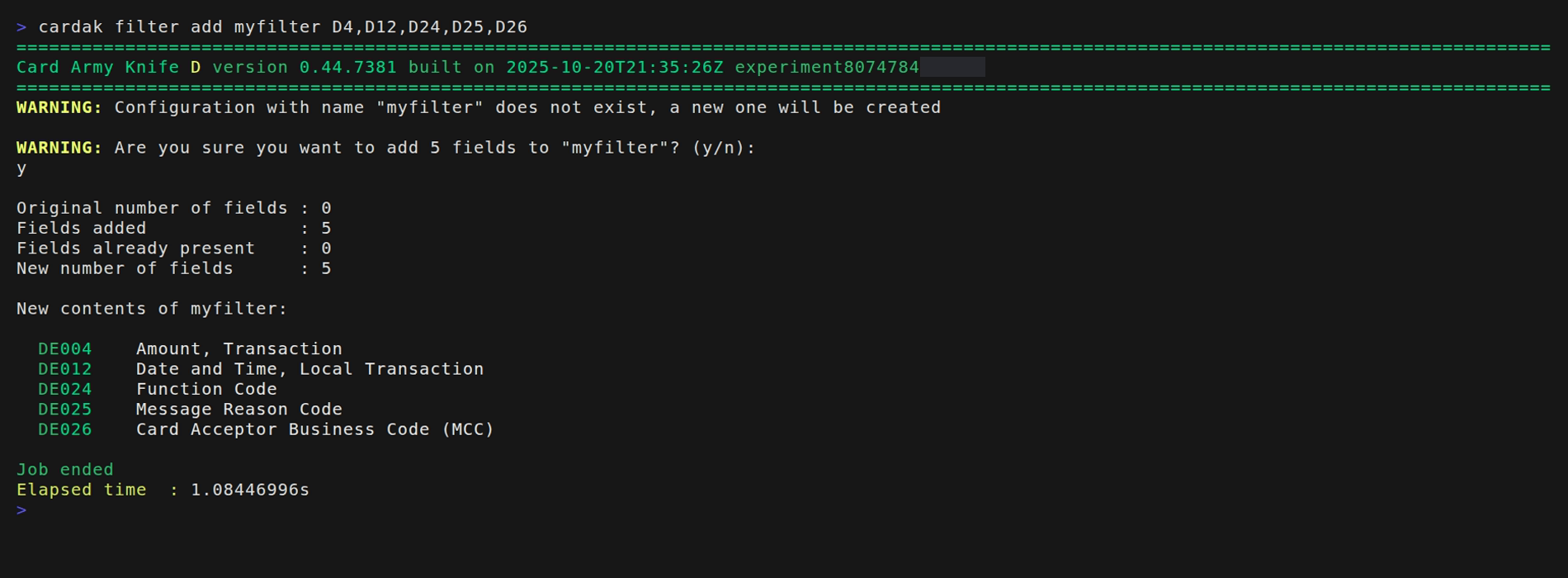
The FILTER ADD command will create or add the fields to a new or existing filter. In this case it will ask if we want to create a new one. We answer affirmatively and it shows how this new filter named "myfilter" is defined.
From now on, when we need to specify a list of fields, we can just put the name of the filter and it will expand it to the list of fields. For example, instead of entering this:
-R D4,D12,D24,D25,D26
We can simply enter this:
-R myfilter
Let's create another filter named "anotherfilter" but containing other fields
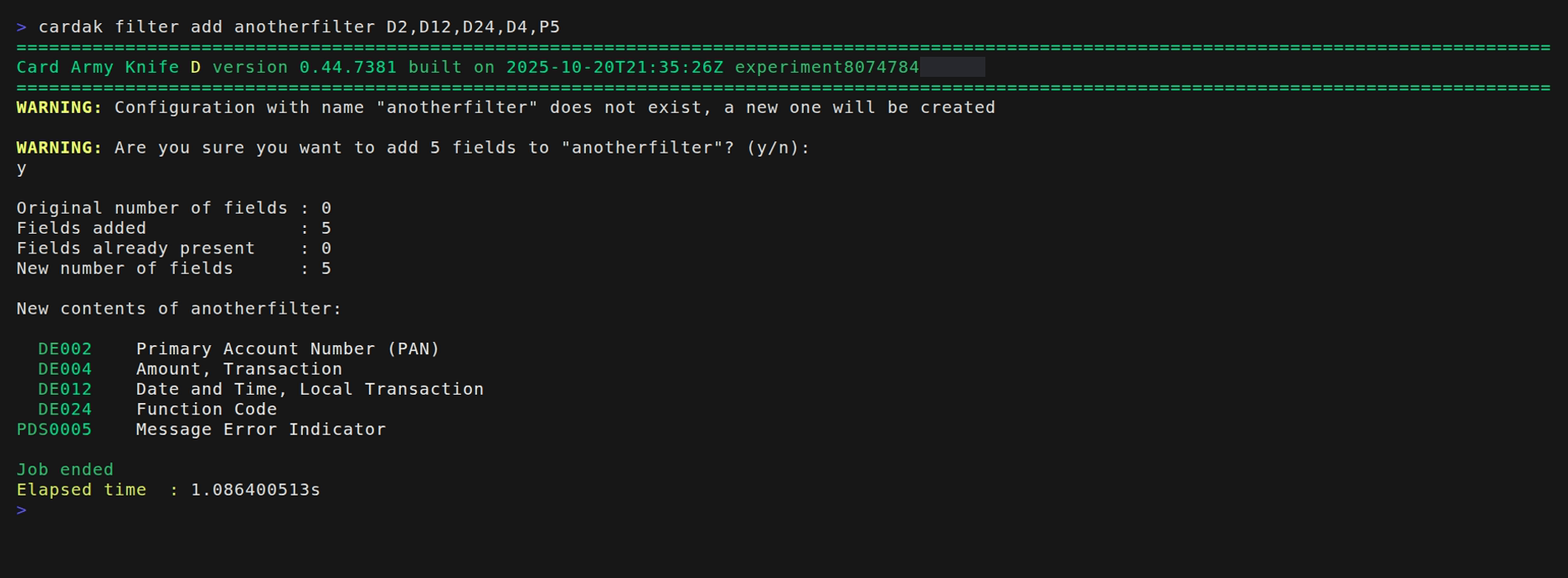
We can now see which filters are defined using FILTER LIST
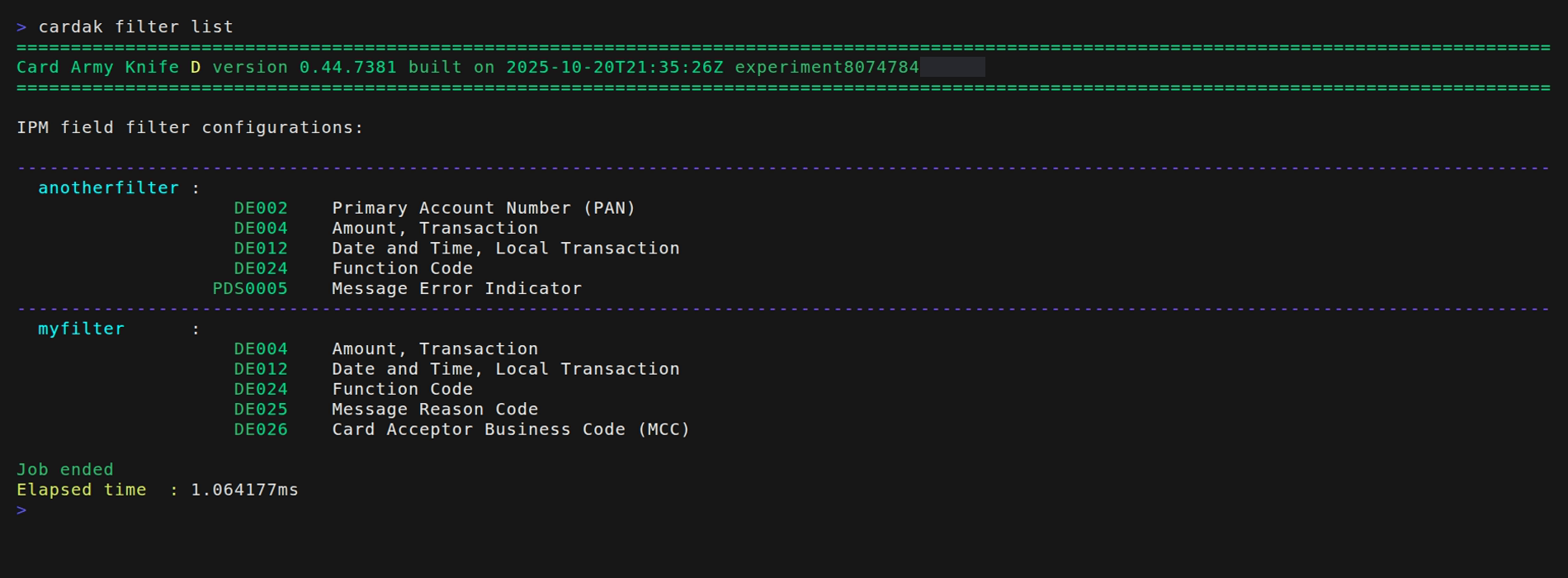
We now have two defined filters. We can define as much filters as we wish, and in case we have a lot of them, we can see the contents in a more compact way by using the --summary flag.
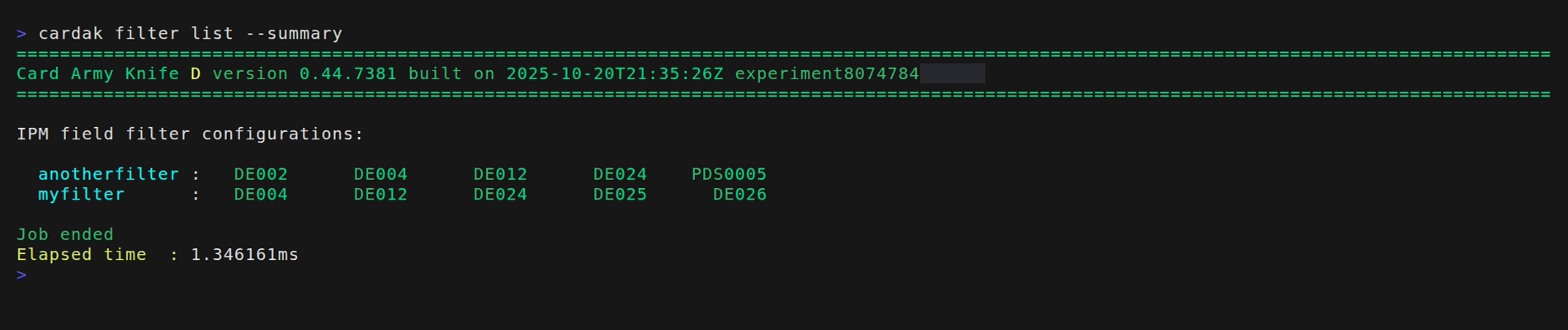
If we need to see the details of just one of them, we can just put the filter name
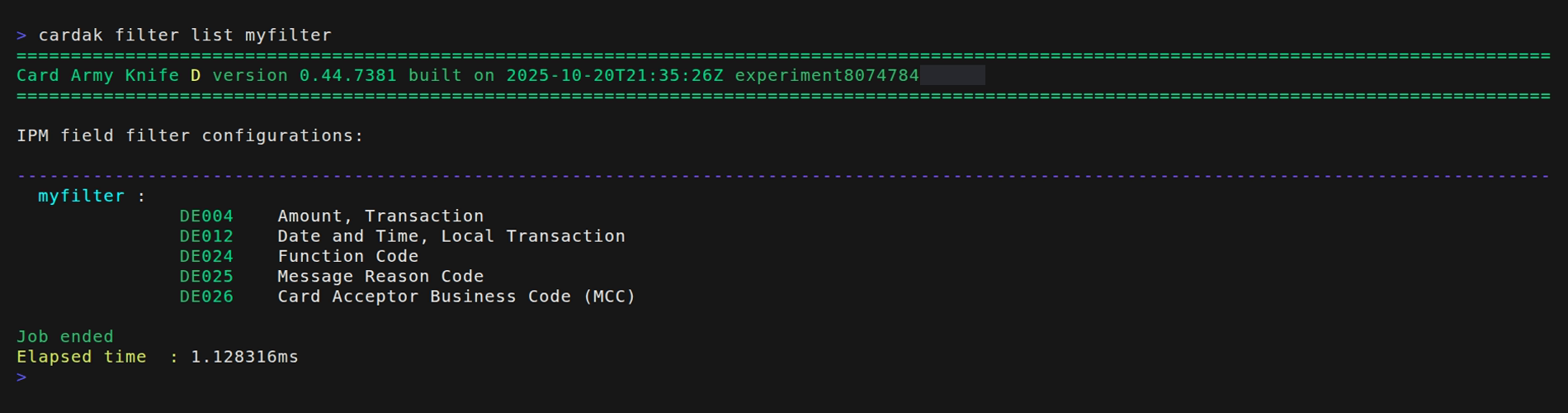
Now, suppose the name "myflter" was not a good idea because it gives no clue on what it contains. We would like it to be named, for example, "basico". We can rename it this way:
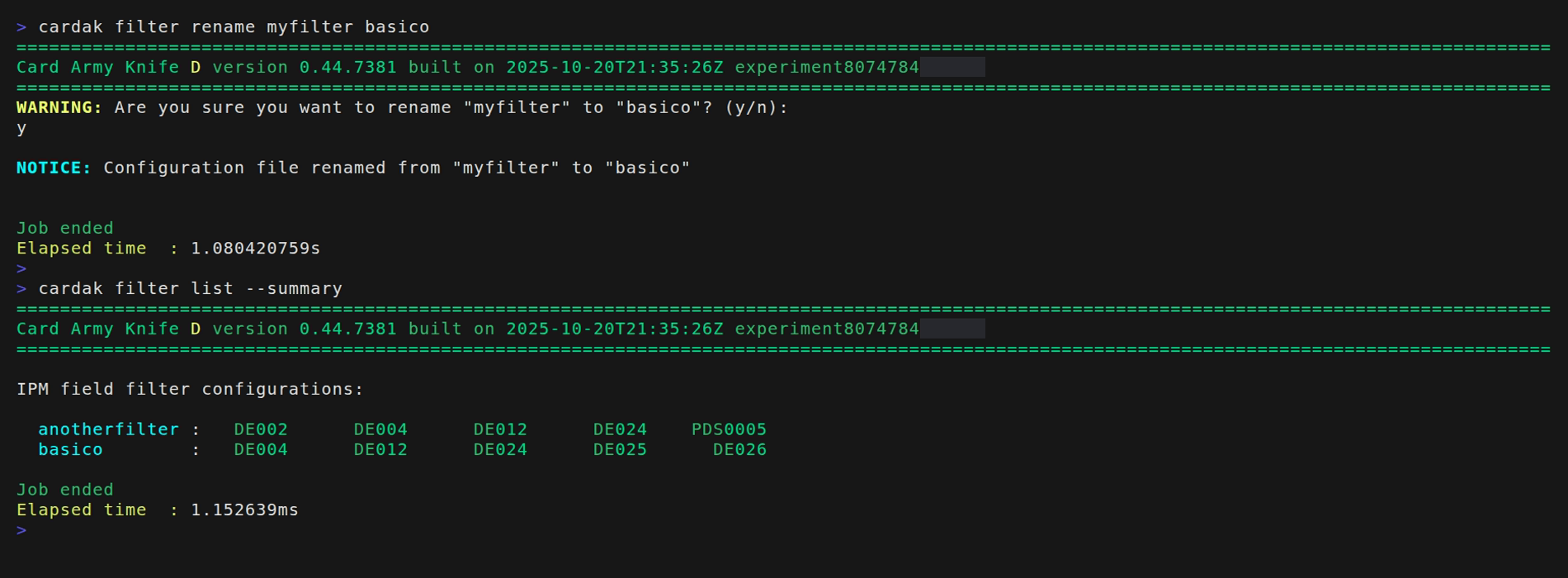
Now we will create a new filter from an existing one. We will take the "anotherfilter" and create a new one called "prueba"
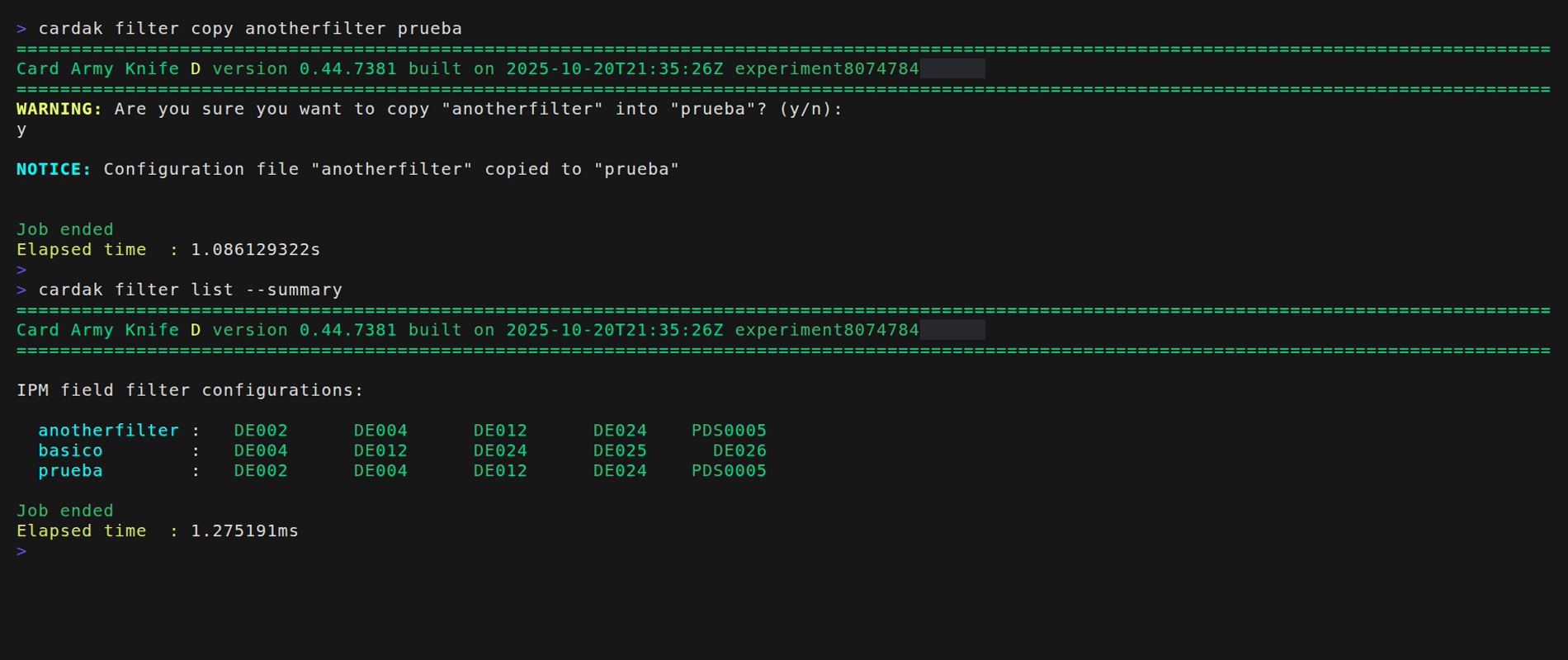
Next we will add some fields to the existing filter "prueba". For testing we will include some existing fields and see what happens.
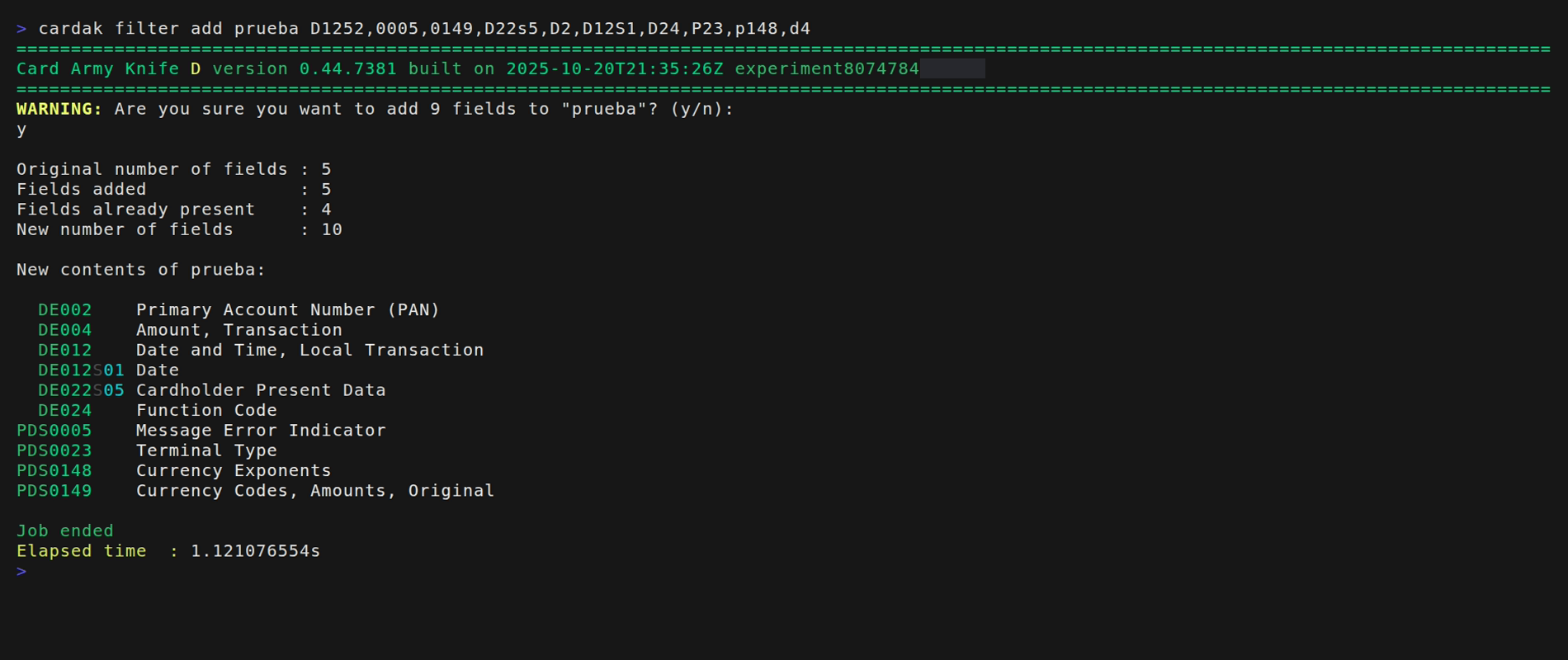
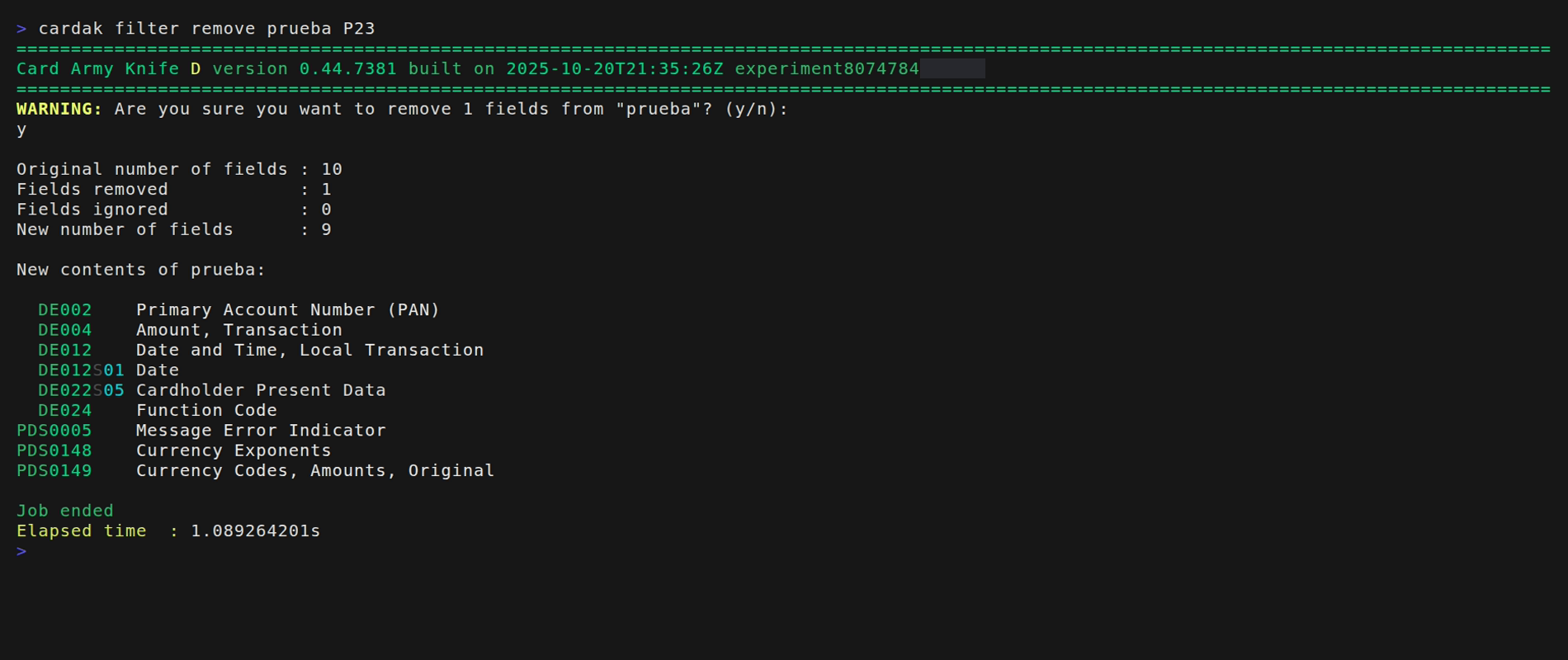
We see that existing fields are just ignored, and that we can directly add sub-fields without the need to include the containing field (for example we can add DE022 SF05 without including field DE022 itself) We can also remove fields from a filter, for example removing PDS0023
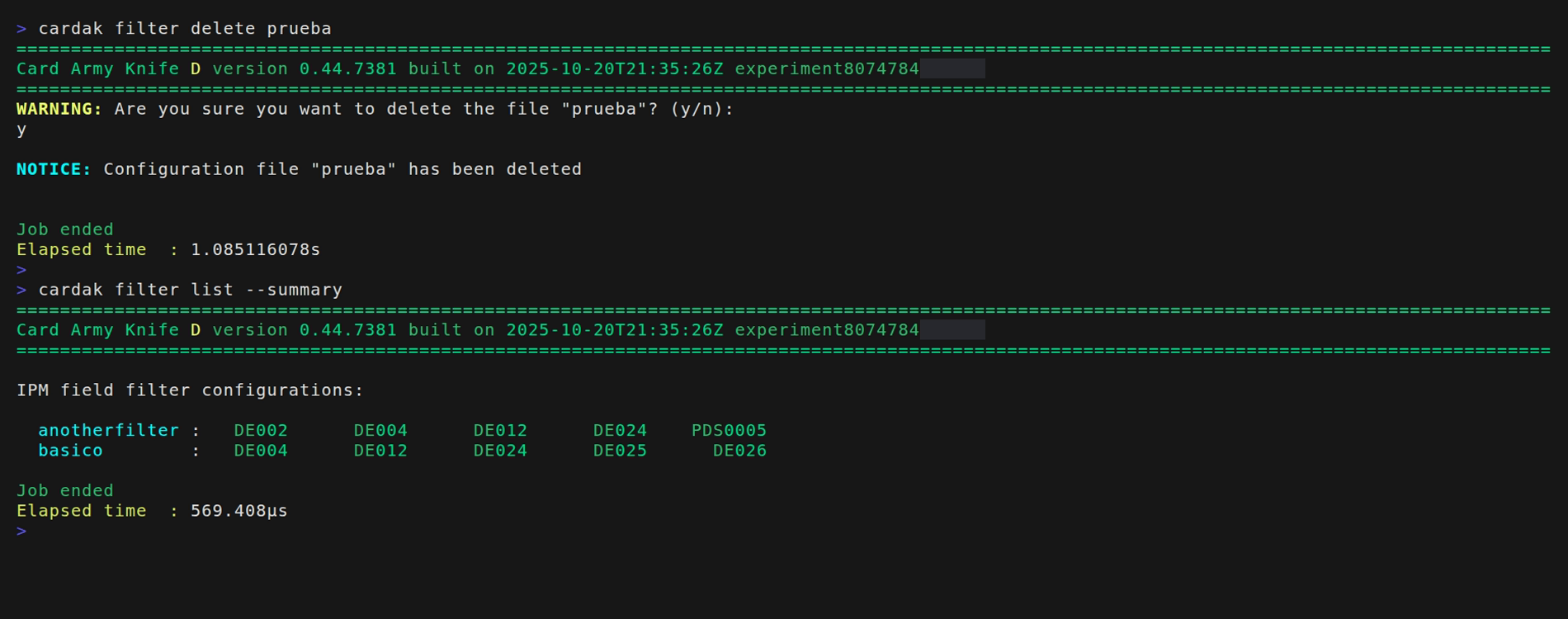
Last, we can just elimintate the filters we are not going to use any more.